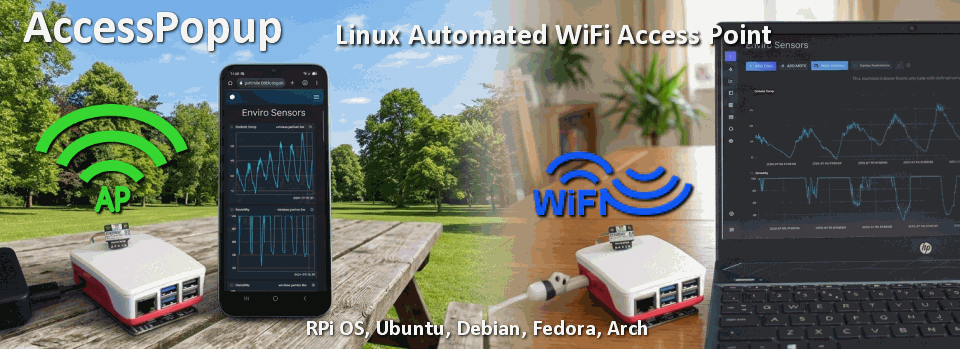
AccessPopup is a dynamic Wifi Access Point for Linux Operating Systems that use Network Manager and SystsemD.
Always have a WiFi connection to your device.
Have you got a Sensor project, a Camera project or an Automated system running in a weak wifi location?
If your device looses connection with your Wifi Router then you may have to manually access it or wait until the WiFi reconnects. With AccessPopup an Access Point will be created so you can still access your project via SSH or VNC and take control.
If your Wifi Routers signal gets stronger again, then AccessPopup will reconnect to your Wifi Network so your projects continues as planned.
Have you got a project without a screen that you use on the go ?
AccessPopup will create the AccessPoint so you can connect to your project via SSH, VNC or via a webserver and let you setup and control your projects. Then when you get home your device connects to your home WiFi router so you can get the results from your project on your home systems.
Features:
- WiFi Always Available
- Automatically connects to a know WiFi Network that is in range, such as your Home router.
- Creates a WiFi Access Point when all known WiFi Networks are Out of range.
- Re-connects to a known WiFi network when it is back in range.
- The Access Point will not be deactivated while a device is connected to it.
- Manually activate the Access Point via a single command or via the Web App or SSH.
- Optional Web Interface to Activate the Access Point manually or setup a new WiFi network connection
- Great for Headerless Systems when screens are not available.
- Works with Raspberry Pi OS, Debian, Ubuntu, Fedora, Arch and derivatives
- Internet available for the Access Point connected devices via an Ethernet connection (eth0) to the internet.
- Great for portable devices such a Single Board Computers like the Raspberry Pi, Linux Laptops, Robots and Cyberdecks
- For use with SSH, VNC, HTTP, SMB, TCP, MQTT and other connectivity options
- Open Source, available on GitHub
The Installer and Configuration script adds options for :
- Change the Access Points SSID and Password
- Change Access Points IP address
- Change system Hostname
- Switch between an Access Point or local WiFi network
- Install the Web App and AccessPopup script
- Uninstall Web App and AccessPopup script
Network Manager already has an Access Point feature, why do I need this?
Network Manager can be setup with an Access Point profile but when it is activated because there is no WiFi network available, then it stays active until it is manually deactivated or the device is rebooted.
If you are connected to a Wifi network and the signal is lost, the Network Manager Access Point profile does not always activate leaving your device with no WiFi at all. You will most probably need to manually access your device to regain access if the WiFi signal cannot be regained.
This is where the script come in as the AccessPopup script will monitor your WiFi connection status every 2 minutes and make sure there is WiFi available all the time. So you can always gain remote access to your Linux device.
Also with the Configuration script or Optional Web App, you can enable or disable the Access Point or add a new WiFi network to your device without needing to know the terminal commands. This makes it a lot easier, especially for headerless devices that don’t have a screen.